
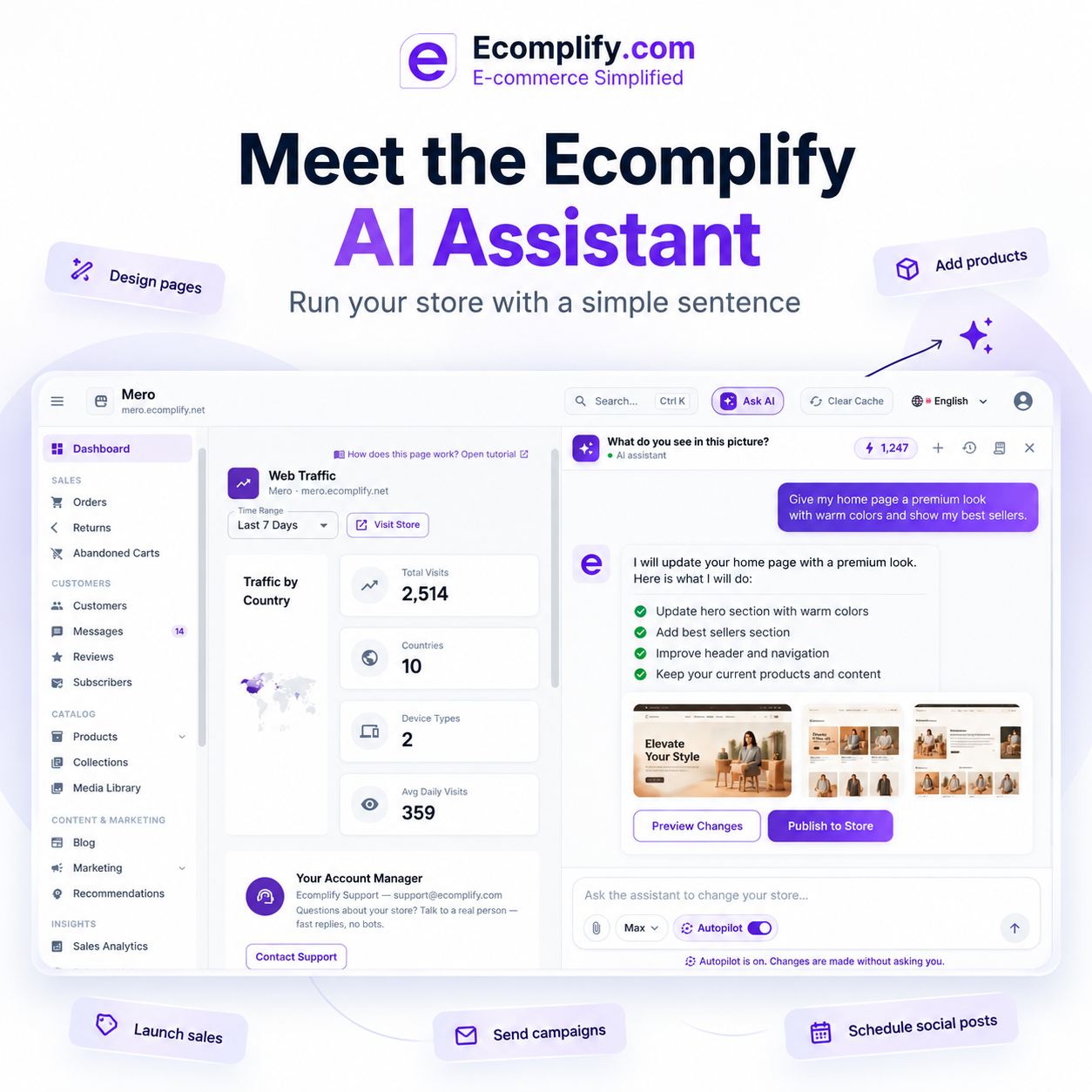
Running an online store is like doing lots of small, repeated jobs that fill a week: listing products, restyling a page before a launch, setting up a
weekend discount, writing the email, posting on three channels, updating a policy. None of it is hard. All of it takes time, and the time comes out of the part of the business
that actually grows it.
The Ecomplify AI Assistant is built for exactly that work. It lives inside your dashboard, it already knows your store, and you talk to it in plain words. You type what you
want. It does the work on your real store, step by step, while you watch. Then it shows you what will change and waits for your yes.
This post walks through what it does, how it keeps you in control, and what it costs, so you know what to expect before you press Ask AI.
What it is, in one paragraph
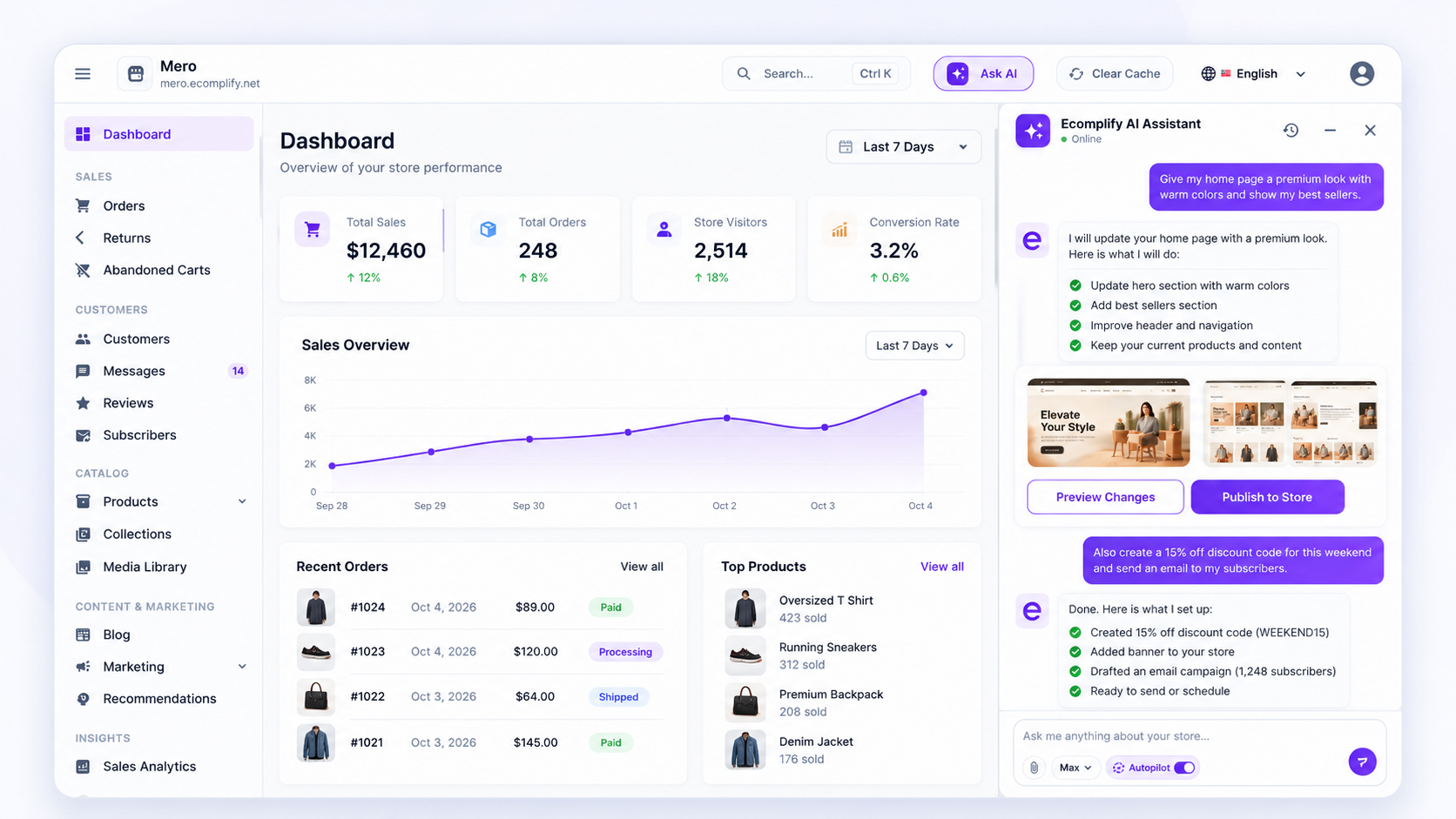
There is nothing to install, connect or configure. Open your Ecomplify dashboard, press Ask AI, and a panel slides in. The
conversation follows you from page to page, survives a refresh, and is there when you open your dashboard on another device. Behind the panel, the assistant uses the same
functions the dashboard itself uses, so a product it creates or a discount it sets up is exactly what you would have built by hand, only faster.
What you can ask it to do
Design your storefront from a sentence
Describe the look you want, or attach a screenshot of a store you like and ask for the same feel. The assistant restyles the whole page: colors, fonts, corners, sections and
layout.
"Give my home page a premium look. Warm colors, an elegant headline, and my best sellers under it."
It works on every page your store has: home, product, collection, cart and your own custom pages. It can also change the header, footer, colors and fonts for the entire
store in one request, so a rebrand is a conversation, not a project.
Every page design is saved as a draft. You preview it, and it goes live only when you say "publish". If you do not like a change, one click reverts it, right in the chat. You
can also keep refining in the theme editor; the assistant and the editor work on the same draft.
Build your catalogue faster
Product listing is where most teams lose their afternoons. The assistant takes it in whatever form you have:
- A photo. "Add this as a product, price 49, sizes S to XL." The name, description, price, variants and pictures are filled in. You approve, and it is in your store.
- Pasted text. Copy a supplier's product sheet or a table with its own column names, paste it in, and the assistant works out what each piece is.
- A CSV or JSON file. Attach your product file in the chat. Every row is checked first. If all is right, the import starts and you get a summary by email. If something is
wrong, you get the row, the column and how to fix it.
Collections work the same way. Ask for "a collection for the holiday season" and it reads your store first, then writes a short title and description for you to approve.
Launch a sale in one request
"Give 15% off this weekend, put a banner on my store and email my subscribers."
That one sentence sets up the discount code with its dates and rules, creates the banner for your storefront, and writes the campaign email. The assistant shows all three as a
list, you approve, and the sale is ready. Offers can be banners, pop-ups, flash sales, seasonal promotions or bundles. Discounts can be order-level, product-level, buy X get Y,
free shipping or a gift with purchase, with or without a code.
Marketing that actually ships
- Email campaigns. The assistant writes the email and saves it as a draft. It tells you who will receive it and roughly how many people that is right now. Send yourself a
test, then send it or schedule it for the time you choose. Campaigns can only be sent by the store owner, never by staff. - Social posts. "Post about the sale on Friday at 6." Written and scheduled for Facebook, Instagram, X, Threads and LinkedIn, using the accounts you have already
connected. If a post will be cut short on a platform, it tells you before you approve.
Content and policies
Ask for a blog post and you get a full article, saved as a draft for you to read before it is published. Ask it to "rewrite my return policy in plain language" and it does, with
your store's details, not generic text. It writes like a person: short sentences, no filler, only facts from your store.
A real person when you need one
Some things need a developer. Say "book a call with a developer" and the assistant offers the free times in your time zone, books the one you pick and tells our team what you
need. You can also send a written request to the team from the chat. Both show up in your dashboard as if you had booked them yourself.
You say it, it does it
| You say | The assistant does | Instead of |
|---|---|---|
| "Add this as a product, price 49." | Fills in name, description, price, sizes and pictures. You approve. | Typing every detail by hand, one product at a time. |
| "Here is my product file." | Checks every row of your CSV or JSON, then starts the import. | Copying rows from a spreadsheet into forms. |
| "15% off this weekend, with a banner." | Sets up the discount and the banner together, with dates and rules. | Setting up the rule, the dates and the banner in separate places. |
| "Email my subscribers about the new arrivals." | Writes the email, saves a draft, sends you a test, then sends or schedules it. | Writing, building the layout, and remembering |
| to send it. | ||
| "Post about the sale on Friday at 6." | Writes and schedules it on every channel you have connected. | Writing a post per channel and scheduling each one. |
| "Make the whole store feel bold and dark." | Changes header, footer, colors, fonts and buttons across the store, as a draft. | Briefing a designer and waiting a week. |
You stay in charge
An assistant that can change your store has to be easy to trust. So the Ecomplify AI Assistant is built around three rules.
It asks first. Before it adds, changes or removes anything, you see exactly what will happen, in plain words, and press Approve or Decline. Products, collections,
posts, offers, discounts, email sends and publishing all wait for you.
Autopilot, when you want it. Once you trust it with the routine work, switch Autopilot on and it stops asking. It still checks every change before saving it, so it never
saves an invalid product or a broken discount. Switch it off at any moment.
One click to take it back. Page designs and brand styles are saved as drafts, and every design change can be reverted from the chat. Deleting something cannot be undone, so
the assistant only deletes when you clearly ask for it.
A few more facts worth knowing:
- Your team can use it. Each staff member can only do what their role already allows. Someone without permission to edit products cannot ask the assistant to edit products
either. - It only works in your store. It cannot see your orders, customers or payments.
- Not used for training. Requests only go to AI providers that do not keep them or train on them.
- Private pictures. A picture you attach stays in the chat until you actually use it in a product, a page or a post.
If you want the full picture of how Ecomplify handles data, our security page covers it.
Three modes, one price you already pay
In the chat box you pick one of three modes:
- Fast for quick edits, questions and everyday changes. It costs the least.
- Designer for the best-looking page designs.
- Max for the hardest, longest requests.
The assistant is included in every plan. Each plan comes with AI credits every month, and you can buy more whenever you need them. A small edit is about one credit. A full
page design is usually two to five credits in Fast mode. You see the credits used by each request and what is left, so there are no surprises. Plan details are on the pricing
page.
Why this matters once you are past the early days
A new store can get by on manual work. A growing brand cannot. The product count goes up, the promotion calendar fills, there are three channels to feed, and every page needs to
look as good as the brand it carries. The usual answer is more people, more tools or an agency on retainer for changes that take ten minutes.
The assistant changes the economics of that. The ten-minute jobs become one sentence. Launches that needed a designer, a copywriter and someone to schedule the posts become one
request with a list you approve. Your team keeps its judgment and its taste; it just stops spending the week on data entry.
And because it is part of the platform rather than a plug-in, there is no extra subscription, no API keys to manage and nothing to break when you update your store. If you are
comparing platforms, our Ecomplify vs Shopify comparison shows where this fits in the bigger picture.
How to start
- Create your store. Sign up free. If you are new to Ecomplify, our guide on launching your
store covers the first steps. - Press Ask AI in your dashboard. The panel opens on any page.
- Ask for something real. Start with "Give my home page a premium look" or "Add this as a product" with a photo attached. Preview, approve, done.
Prefer to see it first? Watch the assistant work on the product page, or book a demo and we will
walk through it on your own store.
Questions people ask before they try it
Will it change my live store without asking?
No. Page designs are saved as drafts you publish when ready. Anything that adds, changes or removes products, collections, posts, offers, discounts or campaigns waits for your
approval. It only stops asking if you switch on Autopilot.
Can I undo what it did?
Every design change can be reverted with one click in the chat. Deletions cannot be undone, so it only deletes on a clear request.
Do I need to set anything up?
No. Open your dashboard and press Ask AI. It already knows your store.
Can my staff use it?
Yes, within the permissions their role already has. Email campaigns can only be sent by the store owner.
Your next store change is one sentence away. Start free, open your dashboard and press Ask AI.